
A couple of months back, one of my buddies, who’s not exactly a techie, asked for my help in picking out a new smart TV for her kiddo’s room. Her son’s loud video gaming sessions were driving the rest of the family up the wall when they were trying to kick back and relax.
To solve this, she came up with the idea of gifting him wireless headphones. However, she hit a snag when she realized his TV lacked Bluetooth to connect the headphones.
That’s when they decided it was time for a new smart TV, specifically one with Bluetooth.
They’re big fans of LG TVs and have been for years, with no complaints so far.
I told her that LG TVs are definitely a gamer’s best friend. Their OLED TVs offer mind-blowing visuals and a low input lag, which is a big plus for gamers like her son.
However, I was in the dark about which LG TV models came with Bluetooth.
So, I hit the books, or, in this case, the internet. This is what I found.
Do LG TVs have Bluetooth?
Sure do! Most LG TVs come with Bluetooth nowadays. Among all smart TV brands, LG tops the list for having the most models sporting built-in Bluetooth.
To pair a device with an LG TV using Bluetooth, it’s pretty straightforward—Settings > All Settings > Sound > Sound Out > Use Wireless Speaker > Bluetooth Device. Then, pick your Bluetooth device from the dropdown menu.
Which LG TV models have Bluetooth?
After many a late-night Google search, I discovered that these LG TV series come with Bluetooth:
- OLED series
- QNED Mini LED series
- NanoCell series
- 4K Ultra series
But don’t worry if your LG TV model doesn’t fall under these categories—it may still have Bluetooth.
There are other ways to find out for sure if your LG TV has Bluetooth.
How do I know if an LG TV has Bluetooth?
The quickest and most reliable way is to head over to the LG website and check the spec sheet for your specific LG TV model.
Allow me to guide you through how to navigate the LG website:
Start by locating the exact LG TV model you’re looking for. Use the filter function on the left side of the webpage to narrow down the search results.
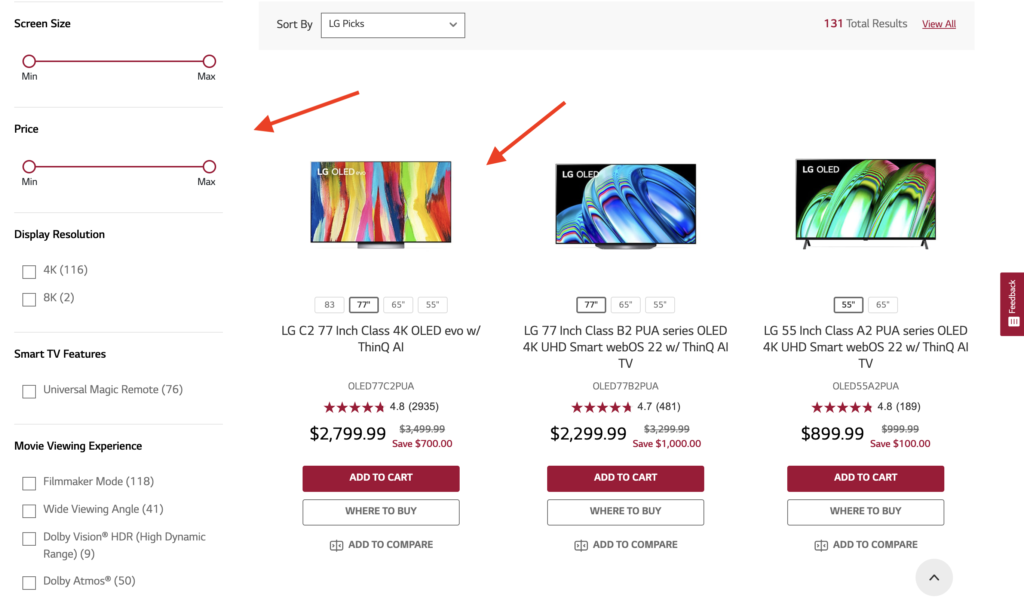
Once you’ve landed on the page of the specific LG TV model you’re interested in, click on it. This will whisk you away to a page dedicated entirely to that particular model.
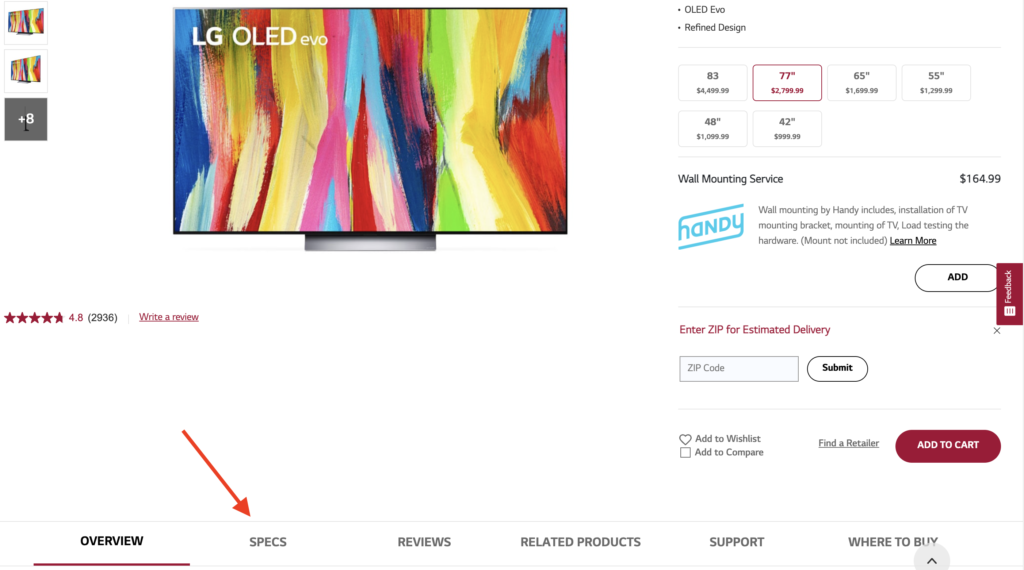
Scroll down a bit and find the “SPECS” tab, then scroll some more until you see “CONNECTIVITY.”
Under that, locate the line that says “Bluetooth Support.” If you see “Version 5.0” or simply “Yes,” you’re in luck—your LG TV does have Bluetooth tech.
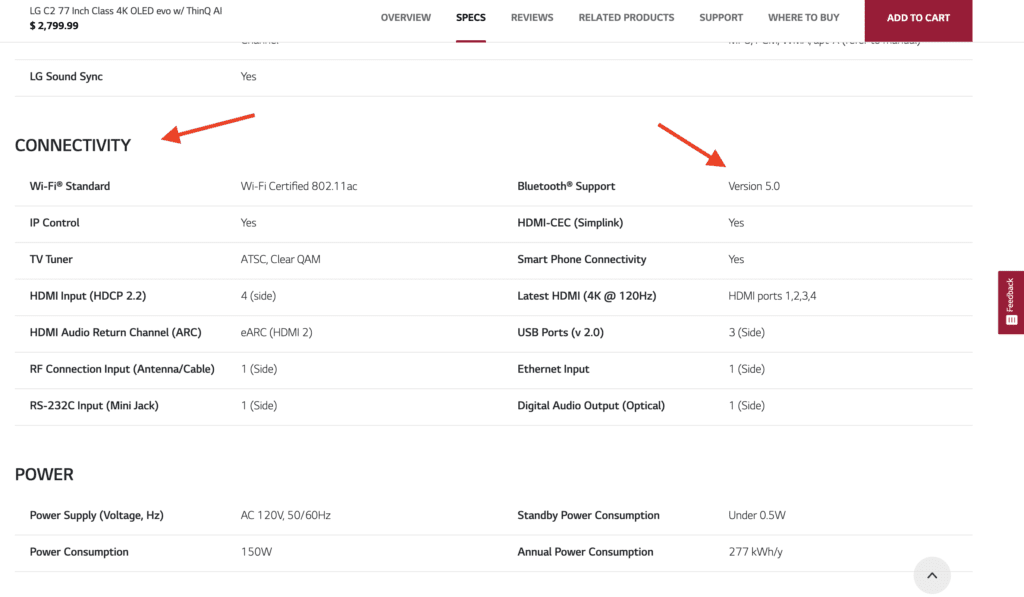
This page is also a treasure trove of other info on the LG TV. It shows whether the TV has ThinQ AI, what built-in voice assistants it supports, and other vital details.
So take a minute or two to browse this page if you want to get the scoop on the specific LG TV model and all its cool features.
If for some reason the LG website isn’t loading for you, no worries—you can also check the user manual of the LG TV to see if Bluetooth is mentioned there.
Just type the name of the LG TV model into Google and tack on the phrase “user manual.” The search results should lead you to a digital copy of that specific LG TV’s user manual.
Flip (or scroll) through the user manual to check if there are any instructions on how to connect Bluetooth devices or even just a Bluetooth logo.
How do I connect a Bluetooth device to my LG TV?
Okay, let’s say you’ve gone the whole nine yards and bought yourself an LG TV. Now it’s time to get that Bluetooth up and running and pair it with your device.
Before you try to turn on Bluetooth on your LG TV, make sure your Bluetooth device is in pairing mode. If it’s not, it’ll be like looking for a needle in a haystack when trying to find it on your TV’s list of available devices.
Different Bluetooth devices have different methods to activate pairing mode. If you’re unsure, dig out its instructions or hit up their online support pages.
Take AirPods for instance—they need to be nestled in their case, and you have to press the little setup button to kick off pairing mode. But some Bluetooth headphones need to be out of their cases for pairing.
Once your Bluetooth device is ready to pair, follow these simple steps to connect it to your LG TV:
- Press your remote’s Home button.
- Navigate to Settings (gear icon on the upper right corner).
- Go to All Settings, then Sound.
- Go to Sound Out, then select Use Wireless Speaker.
- Select Bluetooth Device.
- Choose your Bluetooth device from the list.
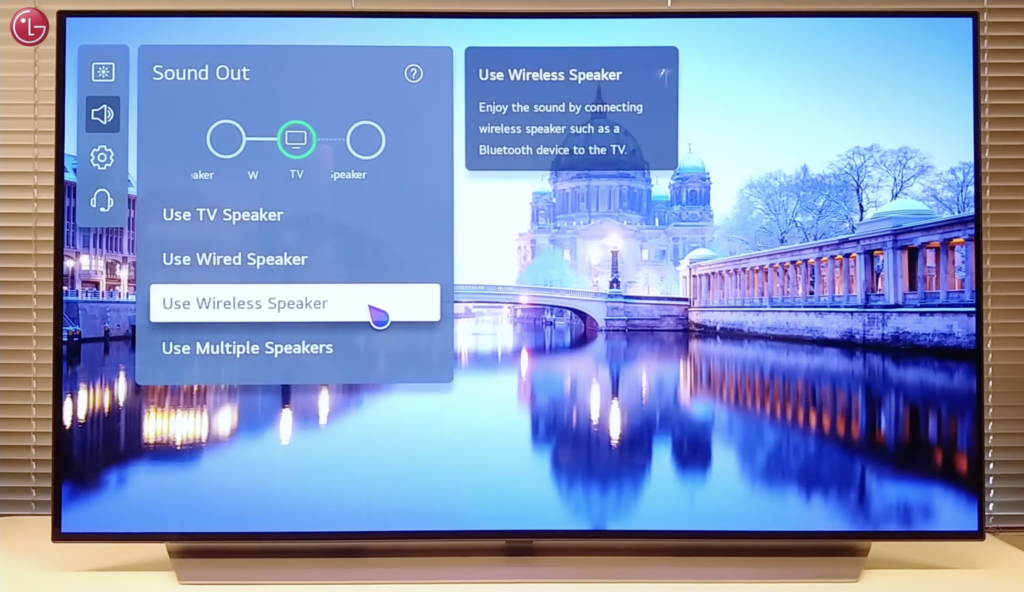
After a successful pairing, your Bluetooth device will make a new home for itself in the Registered Devices list.
To have your LG TV play sound through your registered Bluetooth device, head over to Settings > Sound Out, then choose Bluetooth Device.
There might be a short delay before you start hearing the audio coming out of your Bluetooth device. To confirm everything’s working fine, just play something on your LG TV.
How do I fix common LG TV Bluetooth problems?
Let’s face it—tech hiccups happen from time to time, even with Bluetooth on LG TVs.
After my friend got her son that new LG TV, they’ve called me up a couple of times to help them iron out Bluetooth issues.
If you find yourself in the same boat, don’t sweat it. Most of the time, it’s just a minor hiccup that can be fixed in a snap.
I’ve put in a fair share of hours trawling through forums and Reddit threads, and even hit up LG support to get the 411 on Bluetooth problems with LG TVs. Here are some solutions that have worked like a charm for me:
1. Re-pair your Bluetooth device to your LG TV
It’s as straightforward as it sounds: (1) unpair, and then (2) pair again.
If your LG TV and Bluetooth device aren’t playing nice, the quickest fix is to re-pair them. Simple, but it does the trick.
Unpair your Bluetooth device from your LG TV by following these steps:
- Press your LG TV remote’s Home button.
- Navigate to Settings > All Settings.
- Select Sound, then Sound Out.
- Go to Use Wireless Speaker, then select Bluetooth Device.
- Choose the device you want to unpair, then select Delete Device (trash can icon).
- Select Yes to confirm.
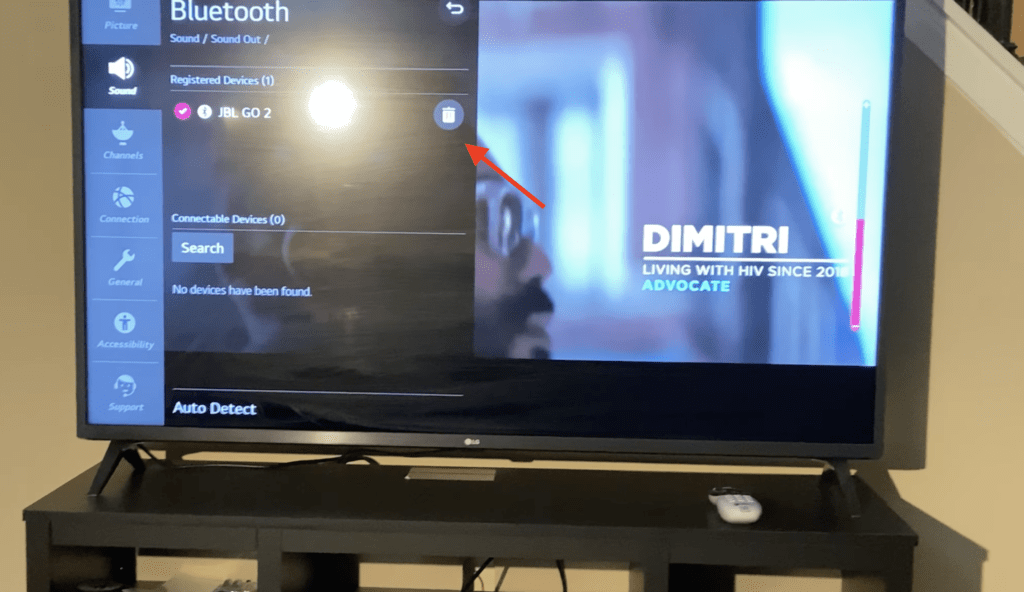
After you’ve unpaired them, give both your Bluetooth device and LG TV a reboot.
Once they’ve been refreshed, it’s time to re-connect them.
2. Disable Quick Start+ and power cycle your LG TV
Most LG TVs come equipped with a nifty feature called Quick Start+.
What this does is keep your LG TV on standby when it’s switched off (as long as it’s still plugged in), making it faster to power back on. It also pre-loads apps so they’re ready to go the moment you turn your LG TV on.
Sounds like a pretty cool feature, right? Who wouldn’t want a TV that wakes up fast?
However, some LG TV users have noticed that this feature can sometimes cause their TVs to hang or crash. Also, if an LG TV doesn’t get to power down completely for a while, it might accumulate residual electrical charges and bugs.
This could lead to strange issues popping up, like problems with the Bluetooth connection.
So if you’re having a hard time getting your Bluetooth device to connect with your LG TV, switching off Quick Start+ and then power cycling your TV is worth a shot.
Here’s how you turn off the Quick Start+ feature on your LG TV:
- Press your remote’s Home button.
- Navigate to Settings (gear icon).
- Go to All Settings, then General.
- Select Quick Start+ and switch the toggle off.
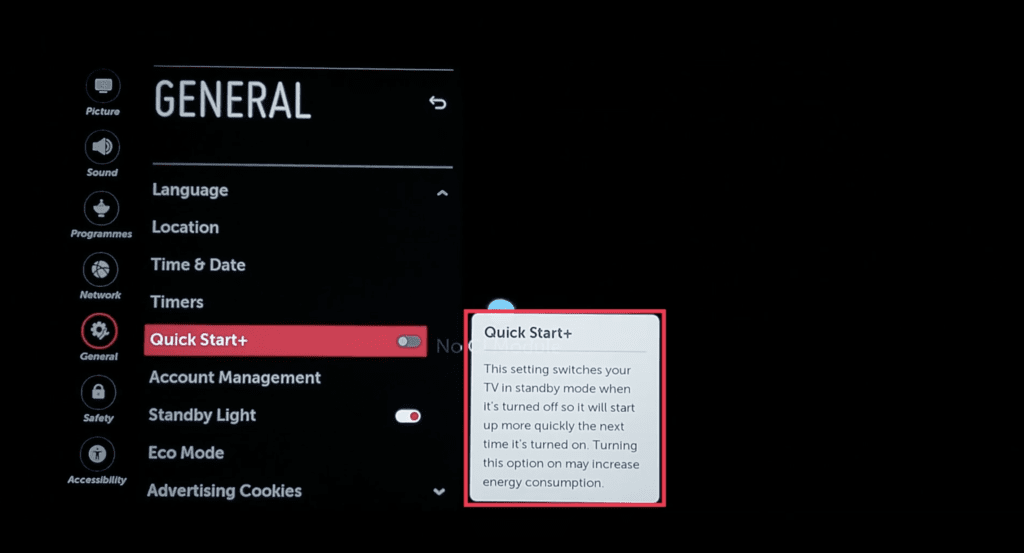
When you’ve toggled off Quick Start+, it’s time for a power cycle on your LG TV:
First, unplug your TV from the power outlet and let it chill out for about a minute.
While you’re playing the waiting game, press and hold the power button on your TV for about 30 seconds to zap any leftover electrical charge.
After a minute, plug your LG TV back into the outlet.
As I noted earlier, a power cycle (also known as a soft reset or cold boot) helps to dissipate residual charge and resets your TV’s main board.
It’s just like a full reboot, perfect for scrubbing away any bugs and glitches.
After the power cycle is complete, try pairing your Bluetooth device with your LG TV again to see if the problem’s been fixed.
3. Reset your Bluetooth device
If the LG TV power cycle didn’t do the trick, it might not be your TV causing the issue.
Sometimes, your Bluetooth device might be the one stirring up trouble.
A simple reset could make all the difference in resolving glitches on your Bluetooth device.
For instructions on how to reset your device, look up your Bluetooth device’s user manual or hit up its online support pages.
The aim here is to take your Bluetooth device back to its factory settings, wiping out any bugs that may have been causing the Bluetooth blip.
Once you’ve given your Bluetooth device a fresh start, pop it back into pairing mode and connect it to your LG TV.
4. Update your LG TV and Bluetooth device’s firmware
Keep your devices’ firmware so fresh and so clean. That’s the advice I gave my friend and her son after I’d sorted out the Bluetooth issue with their brand-new smart TV.
Device manufacturers periodically roll out firmware updates. These updates add new features, squash bugs, and overall make their devices run smoother.
So if your device’s firmware is on the latest version, you can bet most known issues are solved, and the device can perform at its best.
Typically, firmware updates are installed automatically—you don’t have to lift a finger as long as your device is connected to the internet.
But there are times when auto updates might miss the memo. In those cases, you’ll need to manually initiate the firmware update.
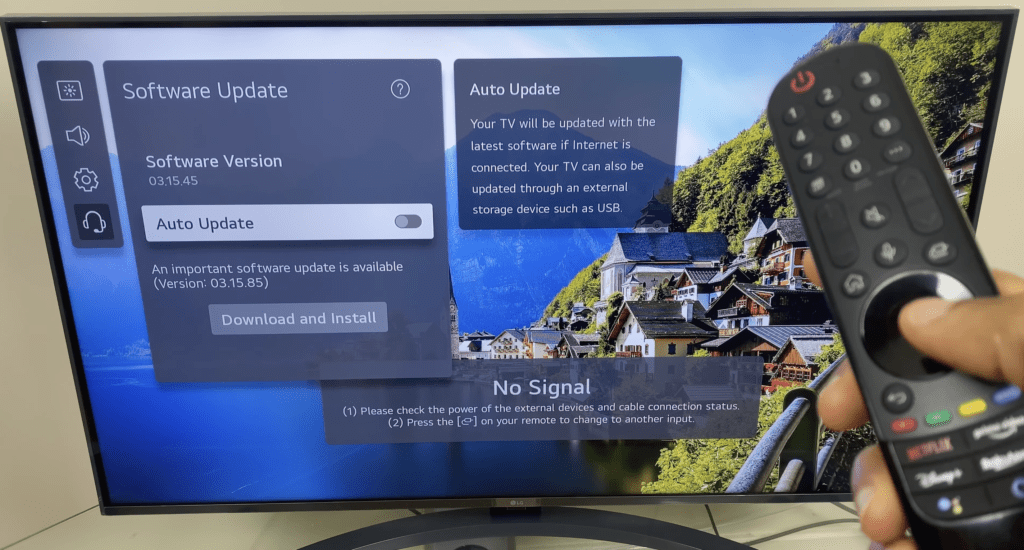
To update your LG TV’s firmware, follow these steps:
- Press your remote’s Home button.
- Go to Settings > All Settings > Support.
- Select Software update, then Check for Updates.
- If there’s a new version, select Download and Install.
(A little pro tip: It’s best to toggle on Auto Update. This way, your TV will take care of any new firmware versions automatically.)
For your Bluetooth device, check out its user manual or online support pages to find out how to update its firmware.
Can’t find your Bluetooth device’s user manual? No sweat—just Google the name and model of your device along with the term “user manual.”
You should be able to find an uploaded version among the top search results.
5. Contact LG support or your Bluetooth device’s support team
If none of the solutions above have done the trick, it might be time to get in touch with the experts—at LG support or the support team for your Bluetooth device.
They’ll walk you through some troubleshooting steps to diagnose the issue, and can help determine if your LG TV or Bluetooth device needs repair.
If your device does need a fix-up or even a replacement, the manufacturer may cover the cost if it’s still under warranty.
Most devices come with a limited one-year warranty that kicks in from the date of purchase.
You can get a hold of LG support by calling either 850-999-4934 or 800-243-0000, any day of the week, from 8 AM – 9 PM (EST).
If calling isn’t your thing, you can also reach out to them via their Twitter and Facebook support accounts.
Summing up
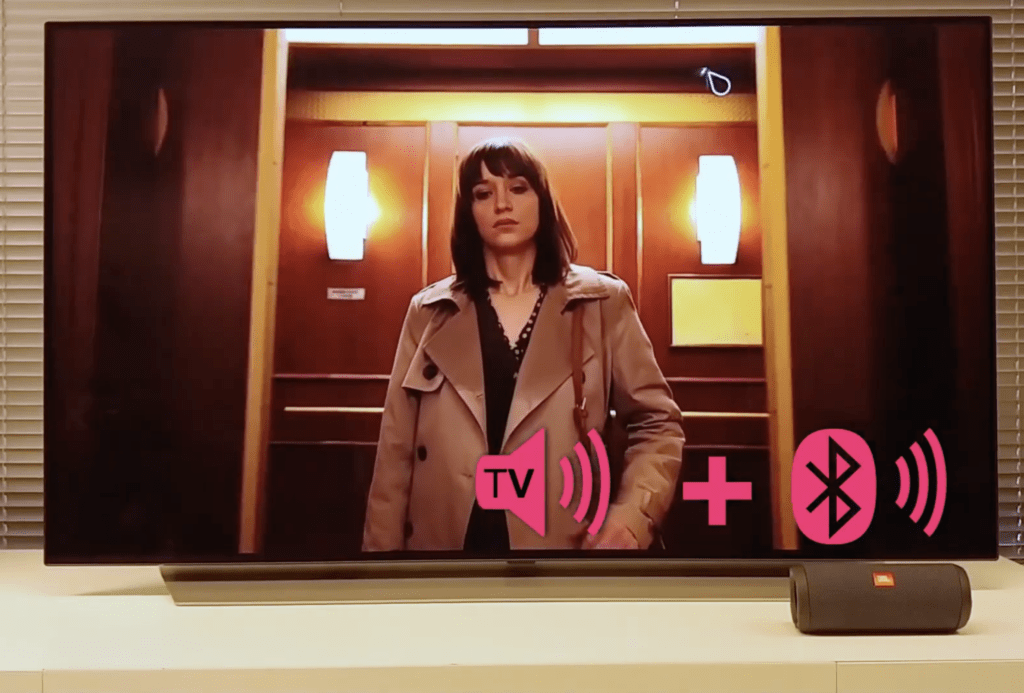
Most LG TVs come Bluetooth-ready. In fact, among all smart TV brands, LG boasts the highest number of models with built-in Bluetooth tech.
Any LG TV under the OLED series, QNED Mini LED series, NanoCell series, or the 4K Ultra series will come with Bluetooth.
To find out if a specific LG TV has Bluetooth, just check out the LG website. Head to the “SPECS” tab and look for “CONNECTIVITY.”
If you see a “Yes” or a “Version 5.0” under Bluetooth support, you’ll know that model is Bluetooth-compatible.
To turn on Bluetooth and connect a device to your LG TV, follow this path: Settings > All Settings > Sound > Sound Out > Use Wireless Speaker > Bluetooth Device. From there, simply select your Bluetooth device from the list.