
It can feel pretty exhausting shouting “Alexa!” over and over again, only to receive silence from your usually responsive, dependable virtual roommate, Alexa.
For some reason, it seems like Alexa’s turned a deaf ear, despite being up and running as usual.
She’s doing everything she usually does— except for responding to your voice.
Here’s a simple trick to bring your digital pal back into the conversation.
The Clever Fix:
Power cycle your Alexa device by unplugging it from the power source for 10 seconds and then plugging it back in. Wait until the device fully resets and connects to the Wi-Fi.
Why Alexa is not responding

Sure, Alexa needs you to speak clearly to understand your commands.
But if you’re near the device and pronouncing every word clearly, only to be met with silence, then something’s definitely amiss.
Here are some potential reasons why Alexa might not be reacting to your commands:

Background noise
Alexa’s microphone is fairly sensitive and could be picking up ambient noise in your space, which may be drowning out your voice.
If it is placed somewhere near a fan, air conditioner, or any other loud objects, Alexa might struggle to recognize your voice commands.
Connectivity issue
It’s obvious that a stable internet connection is essential for Alexa to function correctly.
Alexa is heavily dependent on Wi-Fi signals.
Any interruptions in Wi-Fi connectivity, like a weak or non-existent internet connection, can hinder Alexa’s performance.
Software glitch
Alexa is regularly updated to ensure smooth operations.
If your Alexa isn’t updated regularly or doesn’t refresh every now and then, it might hinder its performance.
Hardware problem
Any internal hardware failure could potentially interfere with the execution of your commands.
Most often, the issue lies with the microphone. If it’s not picking up your commands, that’s likely why you’re not getting a response.
Stop right there, do this first
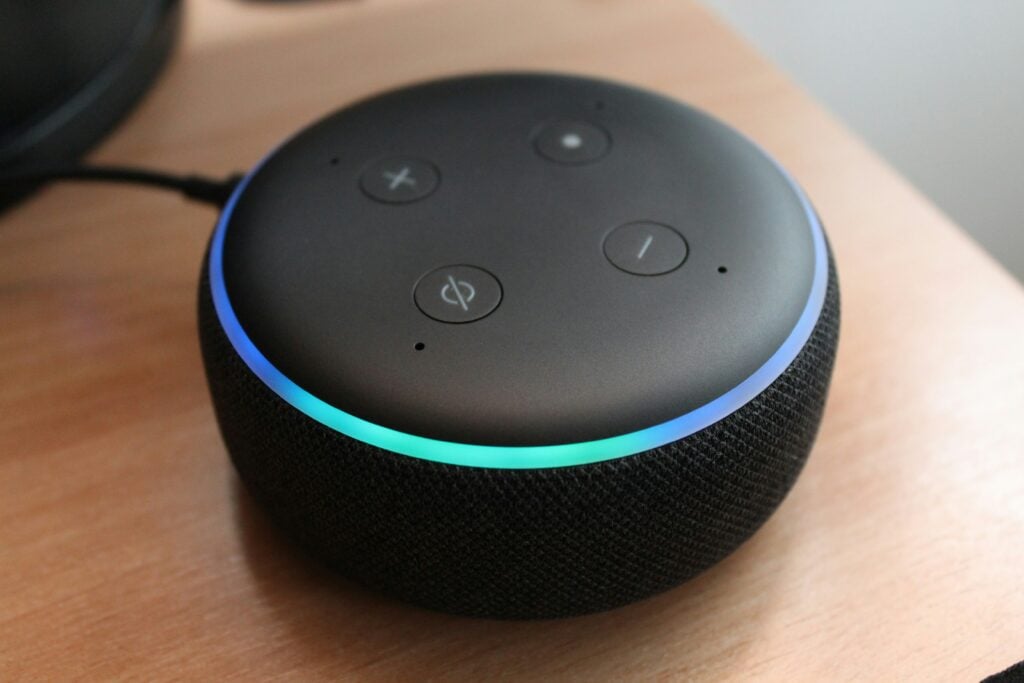
Here’s your first step: Check what Alexa is hearing.
If power cycling hasn’t worked for you, the smartest next move is to see what Alexa is actually picking up.
Check to ensure your voice is coming through clearly, if any sound is being picked up at all, or if background noise is drowning your voice out.
You can check what Alexa hears by opening the voice history in the Alexa app. Here’s how:
Go to Settings > Alexa Privacy > Review Voice History.
You might encounter one of these three situations:
Recording too much background noise
If this is the case, consider relocating your device to a quieter area, away from any loud appliances or objects that might drown your voice out.
However, if an unusually large amount of noise is being picked up due to the device’s sensitivity, head to the end of this article for the Alexa support team’s contact information.
They might be able to adjust something on their end to reduce the sound sensitivity.
No recording in the voice history
Now, this is a noteworthy problem. If there’s nothing in the history, it means your commands aren’t getting through.
Alexa might just be idling, awaiting your voice commands.
If this is the case, skip ahead to the next section for potential solutions.
There’s a voice history, but Alexa is not responding
If you have a clear record and Alexa is processing your commands but you’re not getting any responses, you’ll also need to look at the solutions in the following section.
Something might be causing Alexa to remain silent.
How to fix Alexa not responding
1. Power cycle your Alexa device
This tactic of power cycling is a tried-and-true method for all Alexa users.
Actually, this is the trick I always do when I run into a glitchy Alexa device at an Airbnb. It’s great because it’s not intrusive and doesn’t mess with all the device’s settings.
This brief pause can stimulate the device, resetting it to its usual responsive self.
But bear in mind, some users have found that power cycling offers only a brief respite, with Alexa falling back into a non-responsive state after a few hours or days.
Still, give it a shot.
All you need to do is to unplug the Alexa device from the power source for 10 seconds and then plug them back in.
Wait until the device fully resets and connects to the Wi-Fi.
If you find that this only provides a temporary solution for you too, keep reading for other potential fixes.
2. Check if the Alexa device is muted

Before diving into more complex solutions, make sure your Alexa isn’t simply muted.
Alexa devices have a physical button or switch to mute or unmute the microphone.
It’s possible this button was accidentally pushed while cleaning, during a bout of child’s play, or when moving Alexa around.
So, let’s get moving.
Stand up and check if your Alexa is unmuted.
Remember, if the light indicator on your Alexa is red, it means it’s currently muted.
If the microphone settings are all correct, feel free to move onto the next solution.
3. Check if the Alexa device is connected to a speaker
Have you paired your Alexa device with a Bluetooth speaker recently?
If so, it might still be connected to that speaker.
If the Bluetooth device is muted or has a low volume, this could be why you’re not hearing Alexa’s responses.
This scenario might be the case if Alexa is carrying out your commands, but you’re not getting any feedback when you attempt to interact with it.
One telltale sign is the light on your Alexa device blinking as if it’s responding to your commands whenever you speak to it.
4. Power cycle the Wi-Fi router
Ensure that Alexa is linked to a dependable, working Wi-Fi network.
For some users, simply restarting the Wi-Fi router has brought Alexa back to life.
You might want to try this by unplugging the router for about 30 seconds and plugging it back in.
As an extra step, you can also power cycle your Alexa device to refresh both devices at once.
Once the network is fully restored, see if Alexa is able to respond again.
5. Update the Alexa app
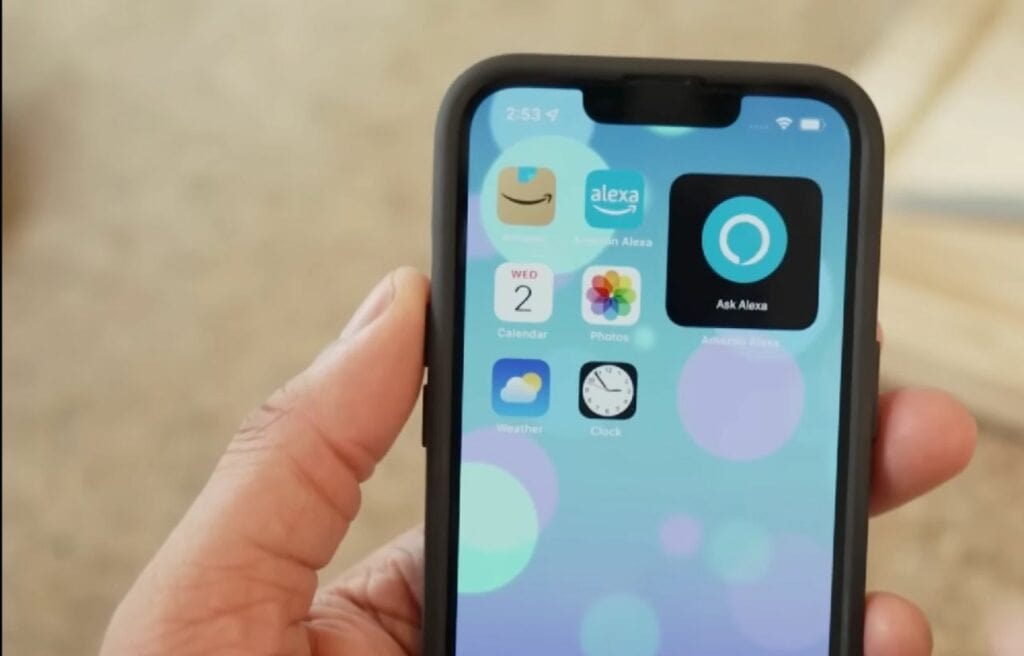
The Alexa app communicates with your Alexa device, sending and receiving commands, settings, and updates.
If it’s experiencing a glitch, it could disrupt communication with your Alexa device, leading to the device becoming unresponsive or encountering other problems.
It doesn’t hurt to try updating the app.
Simply head to your App Store (for iOS) or Play Store (for Android), search for “Amazon Alexa,” and proceed with the update (if there’s one available.)
If your app is already updated or if updating it didn’t make Alexa responsive, move on to the next possible solution.
6. Update the Alexa’s software
The issue could be due to outdated software causing system bugs.
Ensure that Alexa is running on the latest software to fix potential issues and enhance performance.
Unfortunately, there isn’t a single button to initiate the update.
Here’s the process:
- Open the Alexa app, then go to Settings > About.
- Take note of the numbers under Device Software Version.
- Countercheck your current Alexa’s software version to the latest version listed on this Alexa software versions page.
If they match, your Alexa software is up-to-date.
If your version is older, mute your Alexa for about 30 minutes to allow the update to come through.
7. Change the wake word
It’s possible Alexa is just struggling to recognize its wake word.
Apparently, Alexa might not pick up the wake word if it’s not pronounced clearly.
If you or someone in your household has a hard time saying “Alexa”, you can change it to another word that might be easier.
To change Alexa’s wake word using the Alexa app:
- Go to Devices > All Devices > (choose your Alexa device) > General > Wake Word > (choose your preferred word.)
Give the new wake word a try and see if that prompts Alexa to respond.
8. Factory reset the Alexa device
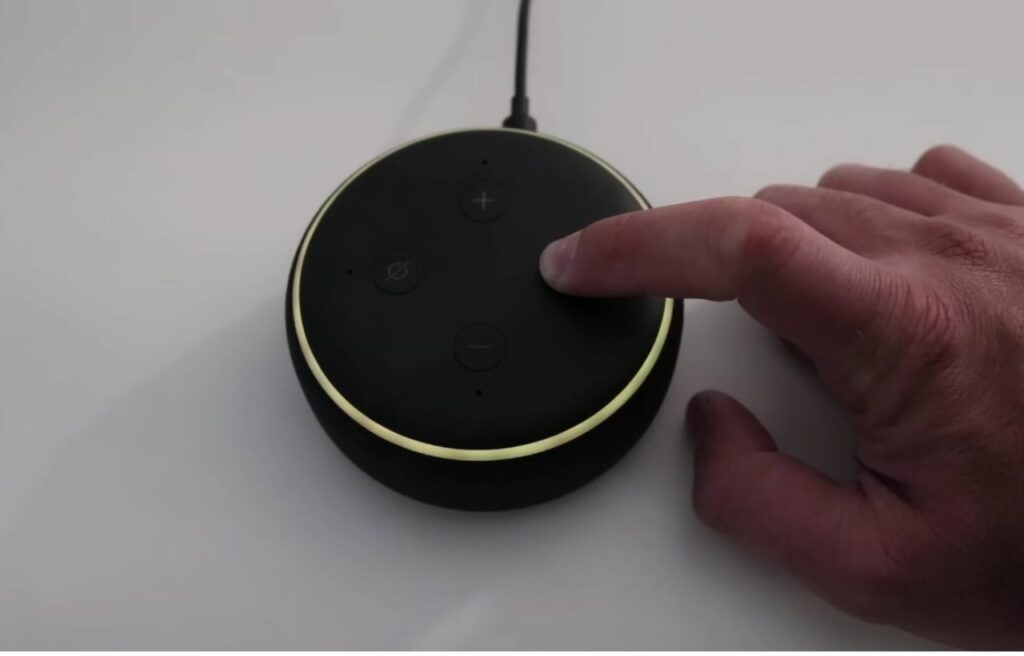
Do bear in mind that a factory reset will erase all of your device’s settings and preferences.
If you decide to factory reset your Alexa device, you’ll need to go through the setup process all over again.
So, make sure you’ve exhausted all your other options before choosing this final fix.
For all models, you can factory reset the device using the Alexa app.
Here’s how to do it:
- Launch the Alexa app, then go to Devices > Echo & Alexa > (select the device) > Factory Reset.
But if you prefer to reset Alexa directly on the device itself, the process will depend on the particular model.
It’s best to consult the manual for the correct steps because some models require two buttons to reset, while others only need one.
In general, for most Alexa devices, you need to find the Reset button and press it for 5 seconds until the orange light starts spinning.
You can also visit this page, click on your specific Alexa device model, and follow the factory reset instructions provided.
If a factory reset doesn’t get things working, it’s likely your device has a serious software or hardware issue.
Get ready to contact the Alexa support team.
A tip for Alexa to hear you
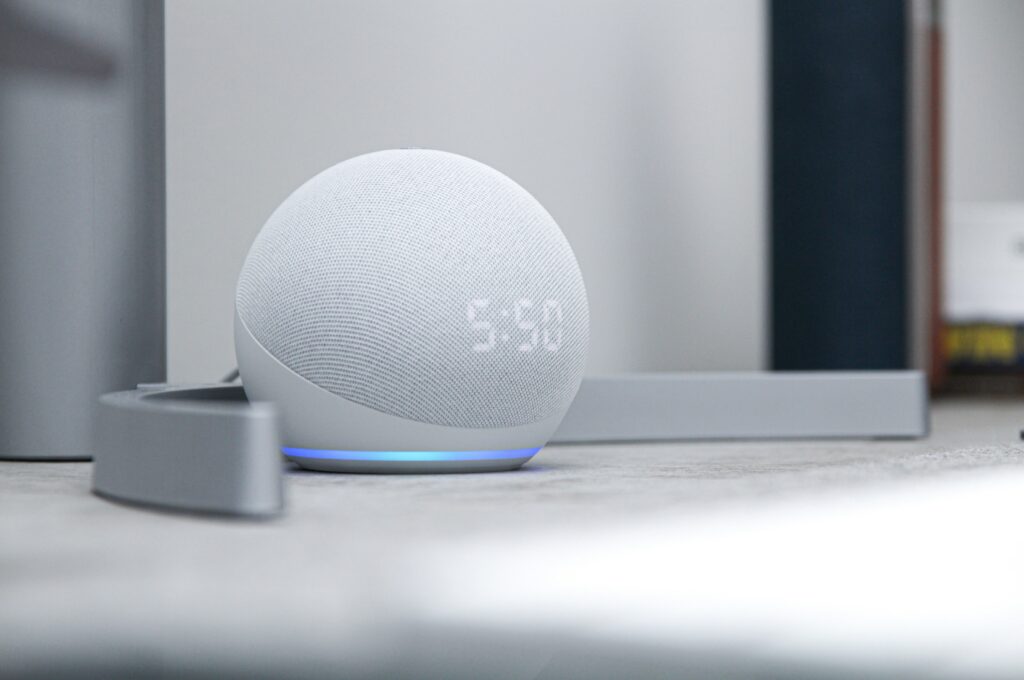
Apart from pronouncing your commands distinctly, there’s something else you can do to make sure Alexa hears you: do a brief pause after saying “Alexa”.
Concentrate on saying the wake word to grab Alexa’s attention before launching into your command.
Rather than rattling off your command quickly, pause momentarily (about 2-3 seconds) between the wake word and the command.
Try something like, “Alexa … play some music.”
It turns out that Alexa hears your commands more accurately if you pause a bit.
Wrapping up
It’s not uncommon for tech devices to suddenly malfunction due to hardware or software failures. So, don’t blame yourself thinking you’re not speaking clearly, which is why Alexa isn’t responding.
Instead of doubting yourself, try the tried-and-true fix for many tech issues: power cycling.
If power cycling doesn’t get Alexa to respond, check the app to confirm whether it’s picking up your voice.
Here are some other solutions aside from power cycling to try:
- Check if the Alexa device is muted.
- Check if the Alexa device is connected to a speaker.
- Power cycle Wi-Fi router.
- Update the Alexa app.
- Update the Alexa’s software.
- Change the wake word.
- Factory reset the Alexa device.
If all else fails, reach out to Alexa support at +1-844-601-7233.
They’ll provide personalized assistance, and if your device is still under warranty, they may offer a replacement.